Control MESHLE Bluetooth Mesh Devices from a WAGO PLC via BACnet™ (CODESYS Guide)
MESHLE devices are wirelessly connected over MESHLE Bluetooth Mesh — a proprietary, offline-first mesh that keeps your lighting, sensors, and actuators running without the cloud. The MESHLE Gateway bridges that wireless network into the rest of your building’s infrastructure, exposing the mesh over an open API surface — REST, MQTT, Modbus TCP/IP, and BACnet™ — so any wired control system you already run can read and control it.
This guide walks the BACnet™ bridge end to end. You’ll configure a WAGO CC100 PLC as a BACnet™ client that reads from and writes to wirelessly connected MESHLE devices through the gateway’s BACnet™ objects, then exposes those values as IEC variables in a CODESYS 3.5 project. It’s a concrete, reproducible proof that a MESHLE Bluetooth Mesh network speaks BACnet™/IP to any wired control system, just like any other field device.
It’s written for building-automation and BMS integrators and for OEM engineers who need wireless MESHLE lighting under PLC control. The worked example uses a multichannel dimmer, covering both analog and binary BACnet™ object types in one setup — but the same pattern bridges every MESHLE device type on the mesh into your wired control system.
Overview
This guide documents the full process of bridging a wirelessly connected MESHLE Bluetooth Mesh network into a wired control system: setting up a WAGO controller as a BACnet™ client that reads from and writes to the MESHLE Gateway over BACnet™, and exposing those values as IEC variables in a CODESYS 3.5 project.
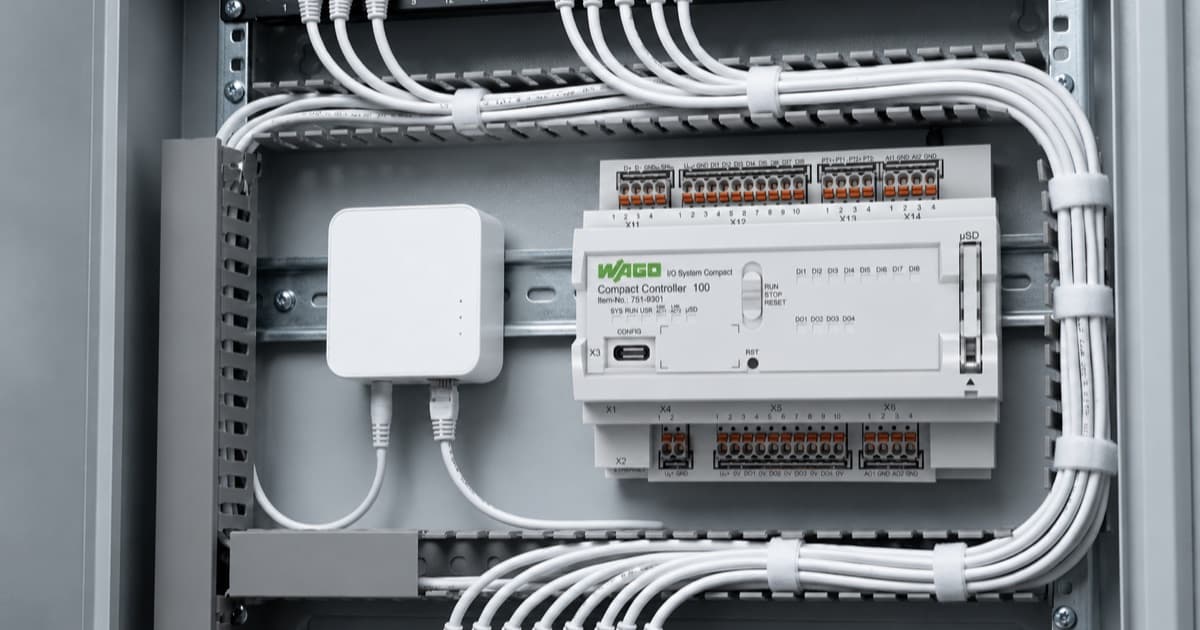
The sample device used throughout is the WAGO CC100 (751-9301). Any other WAGO controller that supports CODESYS 3.5 and the WagoSysBACnet library follows the same process — only the device selection step when creating the CODESYS project differs.
The worked example uses a multichannel dimmer (Out32) device, which has 4 Analog Output objects (one per channel) and 1 Binary Output object (power state). This covers both analog and binary object types in a single setup. The same process applies to all other MESHLE device types.
Supported device types
| Device | BACnet™ objects | Data types | Notes |
|---|---|---|---|
| Multichannel Dimmer (Out32) | Analog Output (×4), Binary Output (×1) | REAL, BOOL | Worked example in this guide |
| Single Channel Dimmer | Analog Output (×1), Binary Output (×1) | REAL, BOOL | Subset of multichannel |
| HCL (Human Centric Lighting) | Analog Output (×2+) | REAL | Colour temperature + intensity |
| HSV | Analog Output (×3) | REAL | Hue, Saturation, Value channels |
| Presence Sensor | Binary Input (×1) | BOOL | Read only |
| Illumination Sensor | Analog Input (×1) | REAL | Read only, lux value |
For sensor devices (presence, illumination), only Read Maps are needed. For actuator devices (dimmers, HCL, HSV), both Read Maps and Write Maps are required.
Prerequisites
Have the following hardware and software in place before you start.
Hardware
- WAGO CC100 (751-9301) on firmware 6.4.6.x or later (the sample device used here — any compatible WAGO controller supporting CODESYS 3.5 and WagoSysBACnet works)
- MESHLE gateway and devices on the same network
- PC on the same network as the WAGO controller and MESHLE devices
Software
- CODESYS 3.5 SP22 or later
- WAGO Devices and Libraries package 2.0.9.2 or later (installed via CODESYS Installer)
- WAGO BACnet™ Configurator 3.4.0.0 or later
- WAGOupload 1.19.1.0 or later (for firmware updates if needed)
Part 1: CODESYS Project Setup
The CODESYS project must exist and be correctly configured before you launch the WAGO BACnet™ Configurator. The Configurator opens from within CODESYS and needs the device, BACnet™ Manager, and library already in place to link against.
1.1 Create a New Project
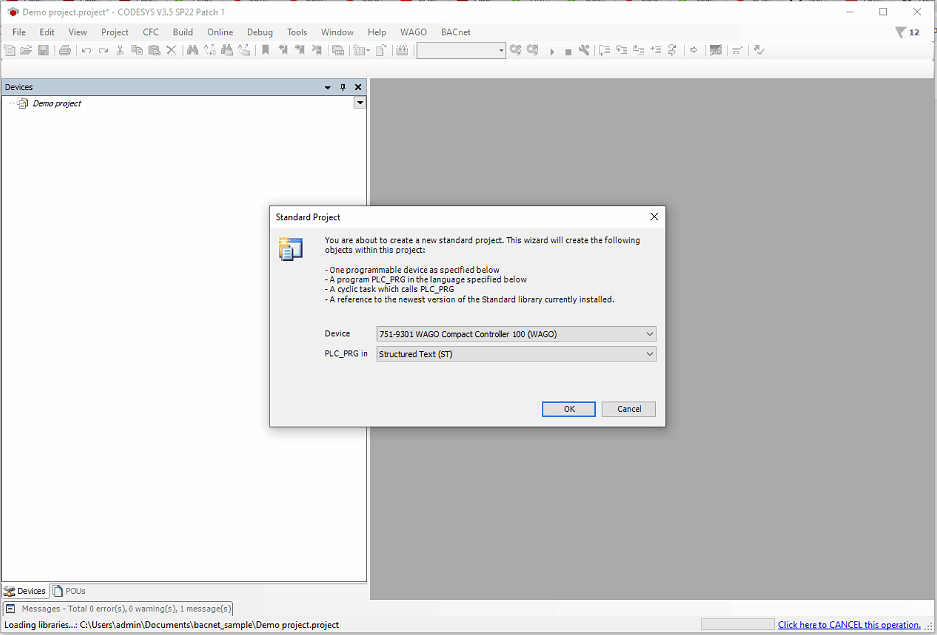
- Open CODESYS and go to File > New Project
- Select Standard Project and click OK
- When prompted to select a device, search for CC100 and select WAGO CC100 (751-9301)
- Set the programming language to Structured Text (ST) and click OK
- Save the project with Ctrl+S and choose a location on disk
1.2 Rename the Device
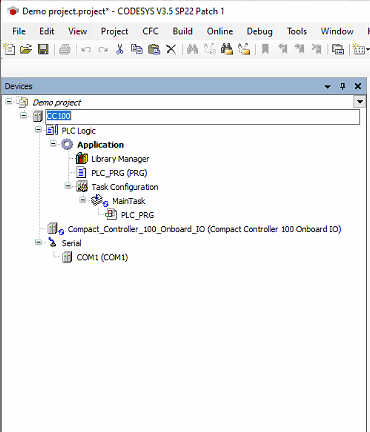
The WagoSysBACnet library requires the controller to be named CC100 in the device tree. A new project may name it “Device” by default.
- In the device tree on the left, right-click the top-level device node
- Select Properties
- Change the name to CC100 and click OK
1.3 Add BACnet™ Manager
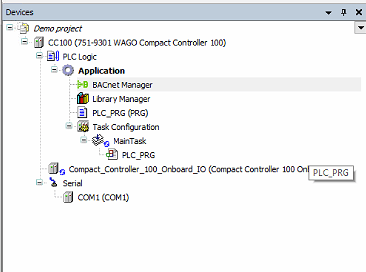
- Right-click Application in the device tree
- Select Add Object > WAGO BACnet™ Manager
- Confirm BACnet™ Manager appears under Application in the device tree
1.4 Add WagoSysBACnet Library
- Double-click Library Manager in the device tree
- Click Add Library, then Application
- Search for wagosysbac
- Select WagoSysBACnet and click OK
- Confirm the library appears in the Library Manager list
1.5 Save the Project
Save the project with Ctrl+S before launching the BACnet™ Configurator. The Configurator reads the project file on launch — unsaved changes will not be visible to it.
Part 2: WAGO BACnet™ Configurator Setup
2.1 Launch BACnet™ Configurator from CODESYS
Always launch the BACnet™ Configurator from within CODESYS, not as a standalone application. This creates the correct link between the .wbc configuration file and your CODESYS project.
- In CODESYS, go to the WAGO menu at the top
- Select Solution Builder > Open in WAGO BACnet™ Configurator
- Confirm the title bar shows CODESYS Mode (not e!COCKPIT Mode)
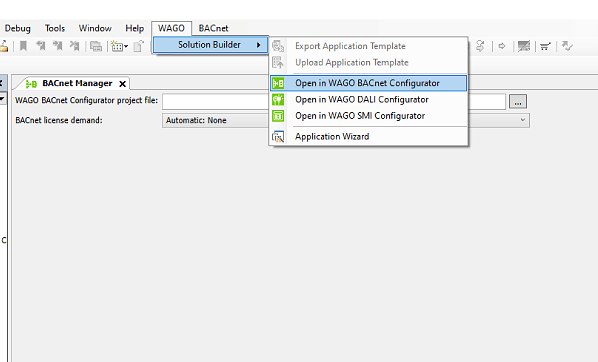
Note: The BACnet™ Configurator runs in two modes: CODESYS Mode and e!COCKPIT Mode. Always use CODESYS Mode when working with a standalone CODESYS 3.5 project.
2.2 Discover Remote Devices
- Switch to the Browsing & Monitoring tab
- Click Device Auto Discovery in the toolbar
- Wait for all BACnet™ devices to appear in the Scan pool on the left
- Right-click the CC100 entry in the Scan pool and select Add to Database
- For each MESHLE device you want to use, right-click it and select Add to Database
- Confirm the CC100 and all required MESHLE devices appear in the Database pool
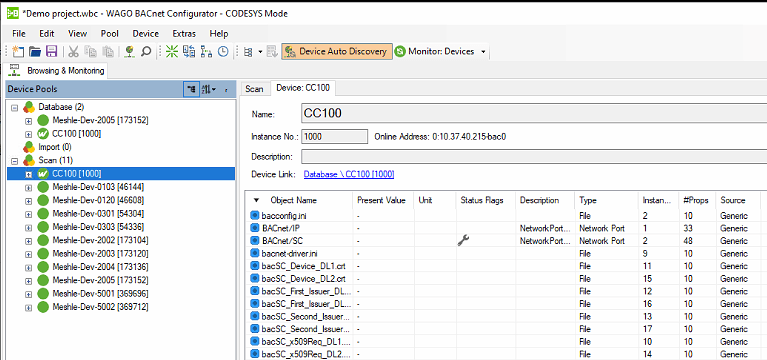
Note: The CC100 must be in the Database pool before you can configure local objects on it in step 2.3. The MESHLE devices must also be in the Database pool before you can reference them in the Client Mapping Editor in step 2.4.
2.3 Create Local BACnet™ Objects on the CC100
The CC100 needs local BACnet™ objects that mirror each remote MESHLE channel. These are what CODESYS reads and writes to. The client mappings (step 2.4) then keep these local objects in sync with the actual MESHLE devices.
- Right-click CC100 [1000] in the Database pool and select Configure
- In the Configure tab, right-click Values in the left tree and select Add Object(s)
- Create Analog Value objects for each channel (one per MESHLE channel): Base name Dev2005_Ch starting at instance 0; Type Analog Value; e!Runtime Export Small
- Create Binary Value objects for power state: Base name Dev2005_Power starting at instance 0; Type Binary Value; e!Runtime Export Small
- Repeat for each MESHLE device on the network depending on the device types and available BACnet™ objects
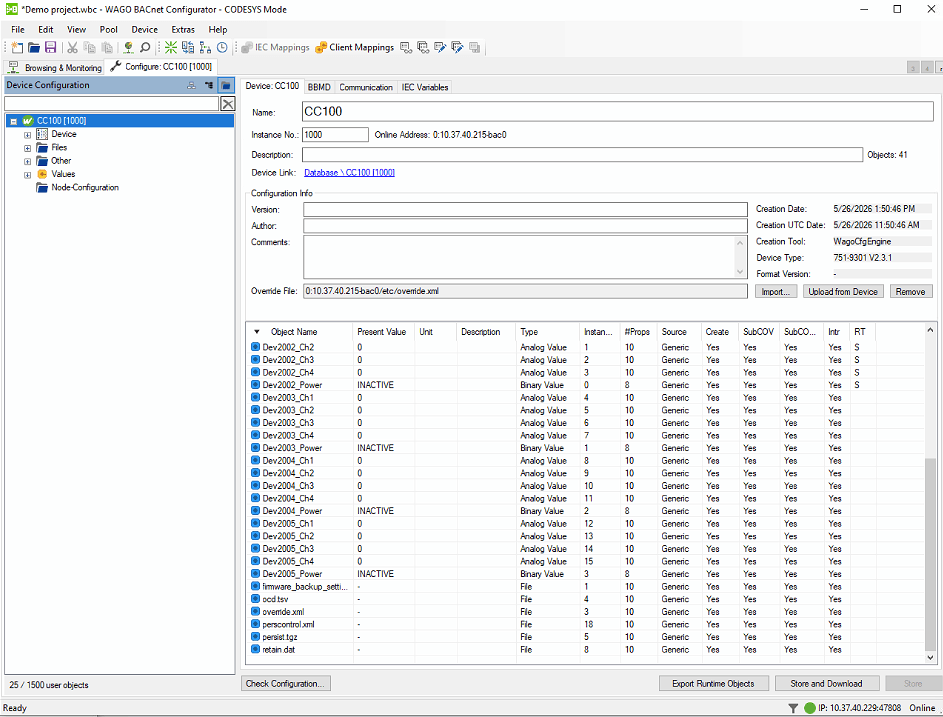
Note: The instance numbers assigned here are used in the CODESYS program to identify which object each function block maps to. Keep track of them as you create objects across multiple devices.
2.4 Configure Client Mappings
Client mappings are the core of the integration. They link each local CC100 BACnet™ object to the corresponding object on the remote MESHLE device, in both directions. This is what allows reads and writes to flow between CODESYS and the physical devices.
Important: The Client Mapping Editor is accessed from the local CC100 object side, not from the remote device side. Navigating from the remote MESHLE device in the Database pool will leave the Add Read Map and Add Write Map buttons greyed out.
Opening the Client Mapping Editor
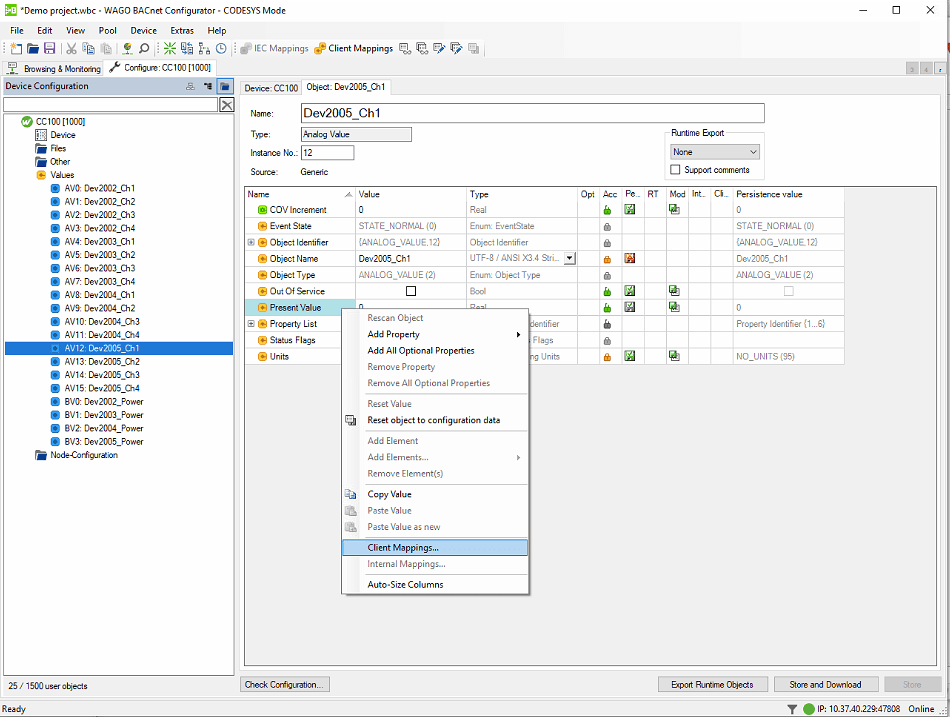
- In the Configure tab, click the local object (e.g. AV0: Dev2005_Ch1) in the left tree
- Right-click Present_Value in the property list on the right and select Client Mappings...
- The Client Mapping Editor opens
Adding Read and Write Maps
- In the Client Mapping Editor, expand the remote MESHLE device in the left tree
- Expand Outputs
- Select the corresponding remote object for Ch1 from the Meshle-2005 device
- Select Present_Value under that object
- Click Add Read Map
- Click Add Write Map (required for control, not just monitoring)
- Set Use Subscription to If available
- Set Poll Cycle to 3 seconds
- Close the editor and repeat for all channel and power objects across all MESHLE devices
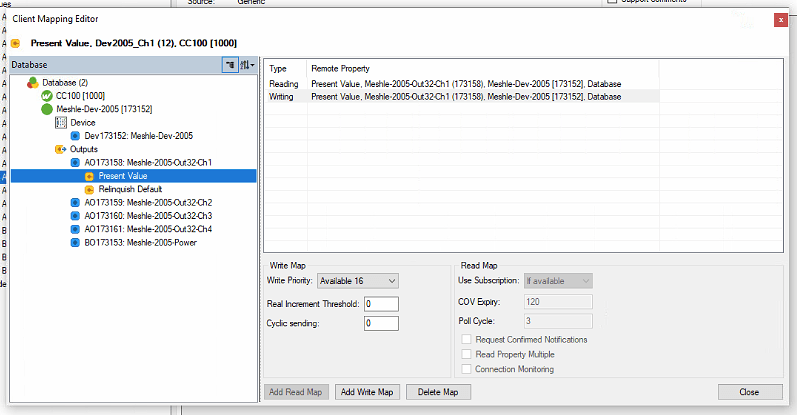
Remote object mapping reference (Meshle-Dev-2002)
| Local object | Local instance | Remote object | Remote instance |
|---|---|---|---|
| Dev2005_Ch1 | AV 0 | Meshle-2002-Out32-Ch1 | AO 173110 |
| Dev2005_Ch2 | AV 1 | Meshle-2002-Out32-Ch2 | AO 173111 |
| Dev2005_Ch3 | AV 2 | Meshle-2002-Out32-Ch3 | AO 173112 |
| Dev2005_Ch4 | AV 3 | Meshle-2002-Out32-Ch4 | AO 173113 |
| Dev2005_Power | BV 0 | Meshle-2002-Power | BO 173105 |
Repeat the same pattern for Dev2003, Dev2004, Dev2005 using their respective remote instance numbers. Instance numbers for local objects continue sequentially across devices (Dev2003 Ch1 = AV4, Ch2 = AV5, etc.).
2.5 Set e!Runtime Export on All Objects
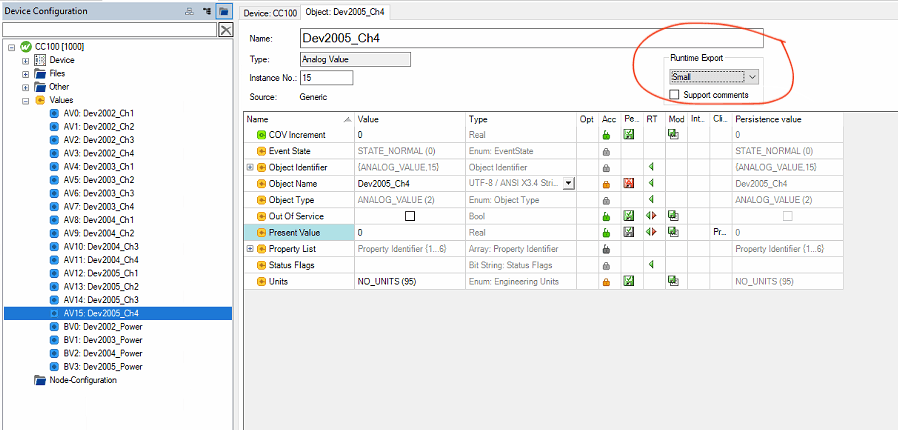
Each local object that needs to be accessible in CODESYS must have its Runtime Export set to Small. This is what makes the object visible to the WagoSysBACnet library function blocks.
- Click the object in the Configure tab
- Set Runtime Export to Small in the top-right of the properties panel
- Repeat for all channel and power objects
2.6 Sync to CODESYS and Download
- In the Configure tab, click the IEC Variables tab at the top
- Click the Application link next to “Application Name” and click OK
- Click Store and Download to push the BACnet™ configuration to the CC100
- If a device version mismatch dialog appears, click Yes to update the project configuration
- Immediately save the project with Ctrl+S after clicking Yes
- Close the BACnet™ Configurator and save when prompted
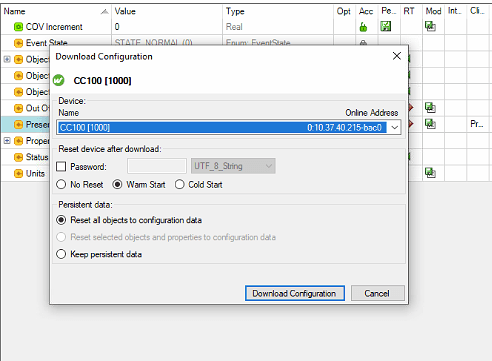
Important: After clicking Yes on the version mismatch dialog, you must save the project immediately with Ctrl+S. If you skip this, the dialog will appear again every time you open the project or run Store and Download.
Part 3: Back in CODESYS — Link, Program, and Deploy
With the BACnet™ configuration downloaded to the CC100, return to CODESYS to link the .wbc file, write the PLC program, and go online.
3.1 Link the .wbc File
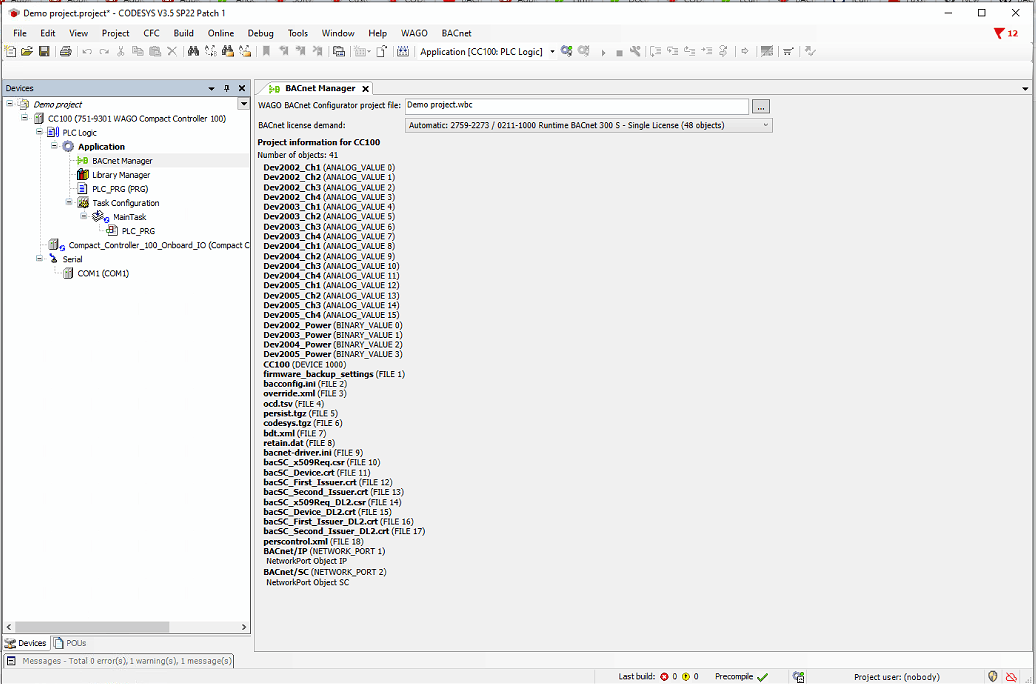
- Double-click BACnet™ Manager in the device tree
- Click the [...] button next to “WAGO BACnet™ Configurator project file”
- Browse to and select your .wbc file
- Confirm the BACnet™ Manager shows all your objects listed under “Project information for CC100”
3.2 Write the PLC Program
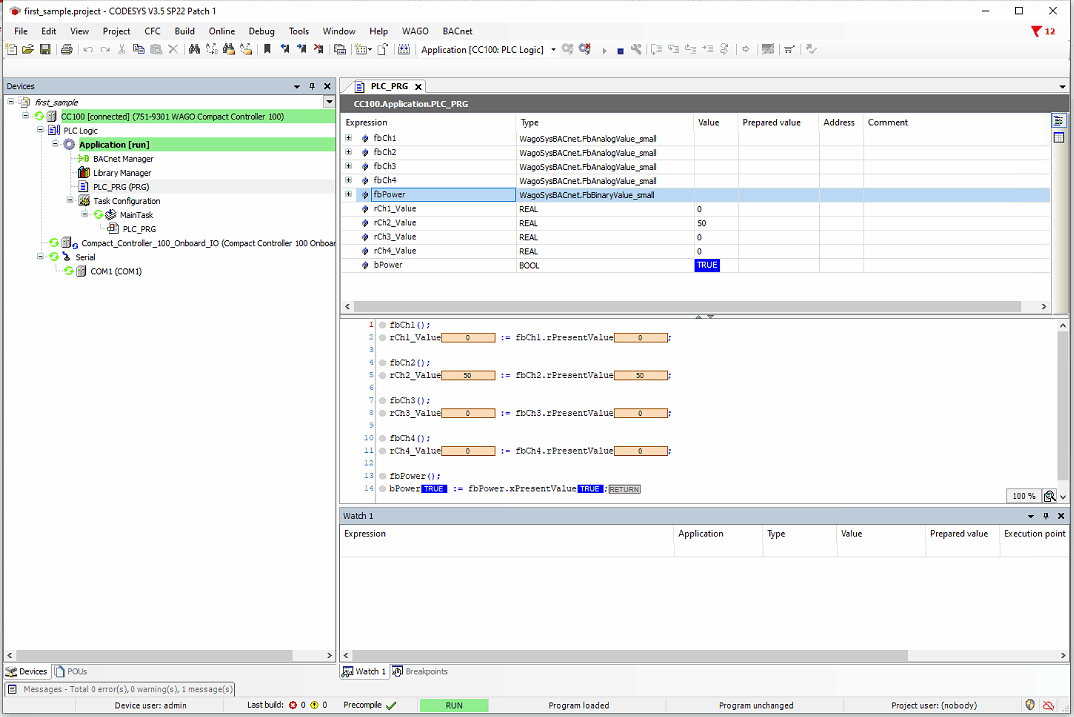
Open PLC_PRG. The editor has two panels: the declaration section at the top and the body at the bottom.
PROGRAM PLC_PRG
VAR
    fbCh1       : WagoSysBACnet.FbAnalogValue_small(0);
    fbCh2       : WagoSysBACnet.FbAnalogValue_small(1);
    fbCh3       : WagoSysBACnet.FbAnalogValue_small(2);
    fbCh4       : WagoSysBACnet.FbAnalogValue_small(3);
    fbPower     : WagoSysBACnet.FbBinaryValue_small(0);
    rCh1_Value  : REAL;
    rCh2_Value  : REAL;
    rCh3_Value  : REAL;
    rCh4_Value  : REAL;
    bPower      : BOOL;
END_VAR
fbCh1();
rCh1_Value := fbCh1.rPresentValue;
fbCh2();
rCh2_Value := fbCh2.rPresentValue;
fbCh3();
rCh3_Value := fbCh3.rPresentValue;
fbCh4();
rCh4_Value := fbCh4.rPresentValue;
fbPower();
bPower := fbPower.xPresentValue;The DINT parameter in each FB declaration is the BACnet™ object instance number assigned in step 2.3. FbAnalogValue_small is used for REAL channels; FbBinaryValue_small is used for the BOOL power state.
Note: For Dev2003, Dev2004, add additional FB instances with instance numbers continuing from where Dev2005 left off. Dev2003 Ch1 = FbAnalogValue_small(4), Ch2 = FbAnalogValue_small(5), Ch3 = FbAnalogValue_small(6), Ch4 = FbAnalogValue_small(7), Power = FbBinaryValue_small(1), and so on.
3.3 Connect and Download
- Confirm the CC100 physical RUN/STOP switch is in the RUN position
- Go to Online > Login
- When the Select Device dialog appears, click Scan Network and select the CC100
- Click OK through any device description version warnings (click Yes to update)
- When prompted to create the application, check Update boot application and click Yes
- The application downloads and starts running
- Live values from the MESHLE devices appear in the variable watch panel
Part 4: Reading and Writing Values
Reading Values
Once online, the watch panel at the bottom of PLC_PRG shows live values. The rCh1_Value through rCh4_Value variables update automatically from the MESHLE device channels via the Read Maps. bPower reflects the current power state.
Writing Values
To write a value from CODESYS to a MESHLE device, write directly to the rPresentValue property of the function block, not to the intermediate read variable. Writing to rCh1_Value has no effect on the device because that variable is overwritten every scan cycle by the read from fbCh1.rPresentValue.
How to write in the debug window
- In the variable watch panel, expand fbCh1 by clicking the arrow next to it
- Locate rPresentValue (for analog channels) or xPresentValue (for the power binary)
- Click the Prepared Value column next to it and enter the desired value
- Click Write Values in the debug toolbar (or press Ctrl+F7)
- The value is pushed through the Write Map to the physical MESHLE device
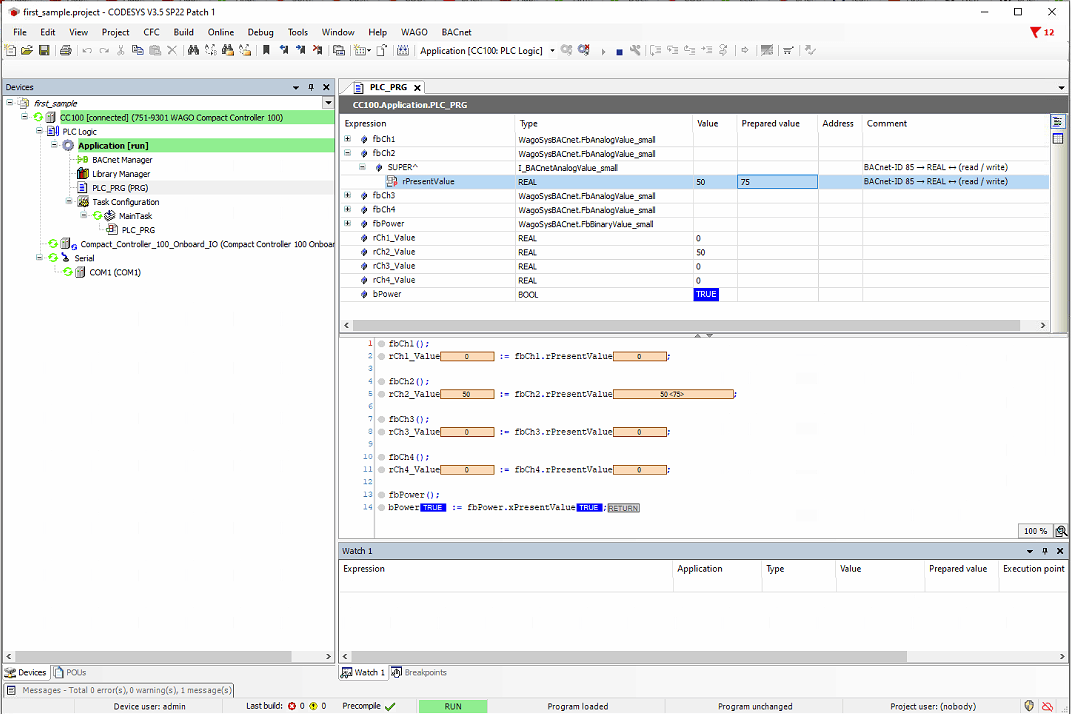
Common mistake: Writing to rCh1_Value instead of fbCh1.rPresentValue will appear to work momentarily but the value reverts immediately on the next scan cycle. Always expand the FB instance and write to rPresentValue directly.
Frequently Asked Questions
Why does CODESYS report a device version mismatch at login?
CODESYS may report that the device in the project does not match the device you are connecting to. This happens when the CC100 firmware version is newer than the WAGO Devices and Libraries package used when the project was created. Click Yes when prompted to update the device configuration, then save the project immediately with Ctrl+S. If you do not save after clicking Yes, the dialog reappears every session.
Why are the Add Read Map / Add Write Map buttons greyed out?
This happens when you open the Client Mapping Editor by navigating from the remote MESHLE device side rather than from the local CC100 object. The correct approach is to click the local CC100 object in the Configure tab, right-click Present_Value on that object, and select Client Mappings. The buttons will be active.
Why do values show 0 in the BACnet™ Configurator database view?
The Database pool in Browsing & Monitoring does not always poll local objects in real time. If the Scan pool shows correct values and CODESYS is receiving correct values, the 0s in the Database view are a display issue, not a configuration problem. Verify functionality by writing from CODESYS and confirming the change on the physical device.
Why won’t the application run even though CODESYS shows it connected?
The CC100 has a physical RUN/STOP switch on the front face of the device. The application will not execute while this switch is in the STOP position, even if CODESYS shows it as connected and downloaded.
What’s the difference between Store and Download and a CODESYS download?
These are two separate operations. Store and Download in the BACnet™ Configurator pushes the BACnet™ configuration (objects and client mappings) to the CC100. Online > Login in CODESYS pushes the PLC program. Both are required after any change. A CODESYS download does not replace the BACnet™ Configurator Store and Download.
Beyond BACnet™ — every device, every protocol
The Read Map / Write Map pattern you built here for one multichannel dimmer applies to every device on your MESHLE Bluetooth Mesh network. Sensors expose Binary Input or Analog Input objects you only read; actuators like single-channel dimmers, HCL, and HSV expose Analog Output and Binary Output objects you read and write — same client-mapping workflow, just different object counts. Once the MESHLE Gateway is on the network, your whole wirelessly connected mesh is addressable from any wired control system as standard BACnet™/IP field devices.
BACnet™ is one of four open paths off the gateway. If your stack isn’t BACnet™-based, the same MESHLE devices are reachable over REST API, MQTT, and Modbus TCP/IP. Building a BMS or PLC integration around MESHLE lighting? Talk to us about your project — we support integrators and OEMs through the full design-in.
Deep dive: DALI lighting control on Bluetooth Mesh — DALI-2/D4i compatible, up to 8 addresses per node, no rewiring.
Further reading
- MESHLE Gateway: one mesh, open APIs (REST, MQTT, Modbus, BACnet™)
- How MESHLE LED drivers fit into a smart lighting ecosystem
- Why MESHLE smart lighting works offline-first
- What is Bluetooth Mesh? A plain-English primer
- Contact MESHLE about a BMS or PLC integration
BACnet™ is a trademark of ASHRAE.